AI Pixel Art Generator: How to Make Sprites for a 2D Game
On this page
To make game sprites with an AI pixel art generator, start with one subject and one action. Set the camera view. Choose the pixel size. Generate a draft. Check every frame. Export a transparent PNG sprite sheet. AI output can still need manual cleanup. A pixel-art appearance alone does not establish correct animation, transparency or game-engine import settings.
This tutorial covers characters, creatures and props for 2D games. The worked prompt describes a small side-view knight. The instructions use SpriteGen’s sprite creator, while the review checklist also applies to output from other AI tools. Product controls and linked documentation were checked on November 4, 2026. This article does not claim a new generation benchmark or a guaranteed first-pass result.
What does an AI pixel art generator produce?
An AI pixel art generator creates a raster image from a description or a reference image. The output may be a single sprite, a scene or an animation sheet, depending on the tool. Choose the required output before generating artwork.
A sprite is one character, prop or other graphic used in a game. A sprite sheet stores multiple frames in one image. A pixel-art scene can look suitable for a game while containing no separate animation frames. Aseprite’s sprite-sheet documentation shows the distinction between an animation and the row, column or grid used to store its frames.
| Your task | SpriteGen tool | What the tool does |
|---|---|---|
| Create one item, icon or character pose | AI Sprite Maker | Generates a single sprite |
| Create a character performing an action | Sprite Creator | Generates an animation sheet |
| Draw or repair individual pixels | Pixel Art Maker | Provides a browser-based editor |
| Combine existing frame images | Sprite Sheet Maker | Packs supplied frames without drawing new poses |
| Extract frames from an existing GIF | GIF to Sprite Sheet | Converts the GIF’s frames into a sheet |
The table describes different tasks, not interchangeable names for the same process. Packing an image does not turn a still pose into an animation.
How do you write a useful AI pixel art prompt?
Name the subject, its identifying details and one action. Use the generator’s controls for settings that have dedicated controls. A short, specific character description is easier to inspect than a request for several characters, camera views and actions together.
For the worked example, enter:
A small knight in blue armor with a yellow visor, carrying a short sword, walking with a clear alternating step.
In SpriteGen, choose Side view, 16-bit, Walk, 8 frames and 32 px. These are starting choices for a small side-view game character, not settings that suit every game. SpriteGen’s current workbench offers separate view, style, action, frame-count and output-format controls.
The prompt gives the knight recognizable features. The action asks for a walk rather than a collection of unrelated poses. If an AI result changes the visor or sword between frames, the description provides concrete details to check and repair.
Which pixel size and frame count should you choose?
Choose frame size for the character’s intended size in the game. Choose frame count for the motion you need. A 32-pixel character is a useful starting experiment for compact artwork. A larger character or more elaborate costume may need more space.
SpriteGen currently offers 16, 32, 64, 96 and 128 px output options, plus HD, and animation choices of 6, 8 or 12 frames. Check the current sprite creator controls before following a saved tutorial. These available sizes do not guarantee that every generated design will read clearly at the smallest size.
For the knight example, start with eight walking frames and inspect the alternating steps. Do not assume that eight frames is the correct choice for every attack, jump or death. Test the action at the speed intended for the game.
The cell size and the sheet dimensions are different numbers. An eight-frame sheet arranged in four columns and two rows, with 32 × 32 cells and no padding, measures 128 × 64 pixels. That calculation describes a layout, not the dimensions of every AI output.
Can you generate pixel art from an existing character image?
Yes. Use the original character as a reference and describe the requested action. A reference helps guide identity; a reference does not guarantee identical proportions or details in every frame. Compare the result with the source image before accepting the animation.
In SpriteGen, use the reference-character control or choose Next action after a completed sheet. Keep the same view and output size when building related actions. The sprite creator’s reference workflow supports using a character image while requesting another action.
For the knight example, use the approved standing knight as the reference and request walking. Check the visor, armor colors, sword length and body proportions across the new frames. A recognizable face does not compensate for a character that changes size during playback. The character-pose experiment report documents bounded successes and failures from earlier tests; those experiments are not a guarantee for new generations.
Can an AI pixel art generator create a usable animation sheet?
An AI animation sheet is usable when the poses show the intended motion and the exported frames behave correctly in the target game. Judge the sequence, not just the appearance of the combined image.
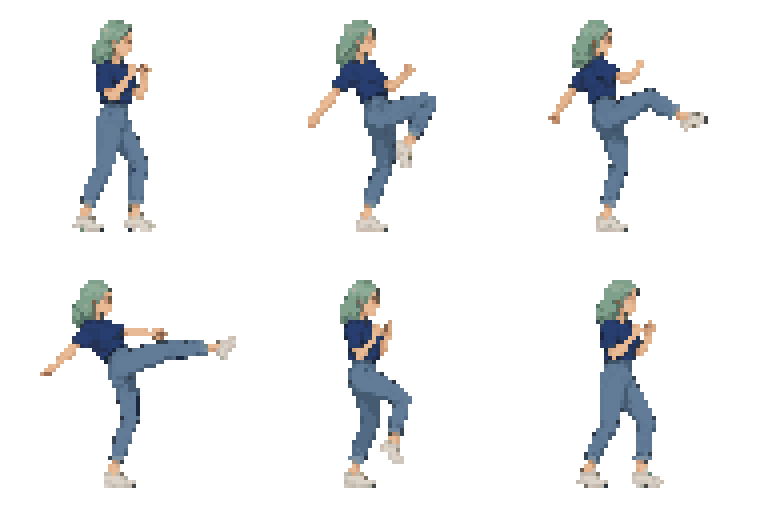

An existing generation from the site owner’s SpriteGen account, used with permission: an eight-frame kick. The PNG contains eight 64 × 64 cells in a 512 × 64 strip. The GIF is the product’s animation export. The walking prompt above is a separate example.
Review an AI-generated walk at normal speed and then inspect the individual frames:
| Check | What to inspect | What to do if the result fails |
|---|---|---|
| Character identity | Armor, face, colors and equipment remain recognizable | Correct the affected frames or generate another draft |
| Body scale | Head and torso do not grow or shrink unexpectedly | Compare against the reference; repair inconsistent frames |
| Ground contact | Planted feet stay on the intended ground level | Check the original artwork and exported placement separately |
| Motion | Legs alternate and the action remains readable | Replace repeated or contradictory poses |
| Loop boundary | The last walking frame transitions into the first | Adjust the end poses or animation timing |
| Transparency | Background pixels are transparent rather than painted checkerboard | Inspect the exported image over contrasting backgrounds |
| Small details | Eyes, outlines and the sword remain legible | Clean up individual pixels at the intended size |
A jump intentionally changes height. A death can end with the body on the ground. Do not flatten those motions by aligning every frame’s lowest visible pixel. Decide which contact points the action actually requires.
How do you export AI pixel art for a game engine?
Export the sprite sheet as a PNG, preserve the intended frame dimensions, and configure the engine to read the correct grid and playback order. Exporting a sheet does not configure the animation inside the game.
SpriteGen’s sprite creator provides sprite-sheet downloads. The separate sheet packer arranges existing frame images. Record the number of columns, rows, cell dimensions and any padding when moving artwork between tools.
For example, Godot’s official 2D sprite animation tutorial uses an AnimatedSprite2D node with a SpriteFrames resource. Godot can read individual frame images or select frames from a sheet. Follow the official tutorial for the editor steps, then preview the knight’s walk inside the actual game scene.
For Unity, Godot and other import workflows, continue with the existing sprite-sheet creation and import guide. Check the animation at its intended display size before treating the asset as finished.
Which AI pixel art generator is best for game sprites?
The best AI pixel art generator depends on the required output and the amount of cleanup the project allows. A tool that produces an attractive portrait may not produce a consistent walk cycle. Compare tools using the same subject, view, size and action.
For a game-sprite evaluation, ask whether the tool provides a reference-image workflow, separate motion controls, inspectable frames and useful exports. Test the animation in the game. Keep a record of rejected results as well as accepted results. A single attractive example does not establish a success rate.
Use the AI sprite generator comparison for a broader tool overview. Use this tutorial for the narrower task of generating and checking one game character.
AI pixel art generator FAQ
Is there a free AI pixel art generator?
SpriteGen offers a free trial of AI generation. Continued use depends on the available credits and current account limits. Check the current pricing and free-trial information before generating. SpriteGen’s manual pixel editor, frame packer and GIF converter are separate free tools; free editing does not mean unlimited free AI generation.
Can I use an AI pixel art generator without signing up?
SpriteGen lets new visitors try AI generation without an account, subject to a security check and trial limits. Additional generations can require signing in or credits. The current sprite creator FAQ describes the trial; the browser-based pixel editor does not require sign-in.
Can AI turn a photo into pixel art?
AI tools can use an uploaded image as a reference for new artwork. A direct photo-to-pixel conversion is a different process: SpriteGen’s Pixel Art Maker provides a photo conversion workflow in the editor. Choose reference-based generation when requesting new poses; choose conversion when reworking the existing image.
Why does AI pixel art flicker during animation?
AI pixel art can flicker when outlines, colors, body proportions or tiny details change across frames. Display scaling and engine sampling can also affect the result. Compare the original frames with playback in the engine before deciding whether the artwork, export or display needs correction. The frame-review checklist in this article identifies specific visual checks, not a guarantee that one setting fixes every case.
Can I edit AI-generated pixel art after downloading it?
Yes. Download the frames or import the sheet into an editor that supports the sheet layout. Aseprite’s import documentation explains how to set frame width, height and padding. SpriteGen’s Pixel Art Maker can also be used for manual pixel work.
Can I use SpriteGen pixel art in a commercial game?
SpriteGen’s Terms of Service, section 5.2 permit personal and commercial use of generated sprite sheets. SpriteGen does not guarantee unique artwork or clearance of third-party rights. Use references and character designs that the project has permission to use, and check the current terms before publishing.
Do I need GitHub or coding skills to use SpriteGen?
No. SpriteGen’s generation, pixel editing and frame-packing tools run through browser controls. Programming can still be required to use the resulting graphics in a game. Generating artwork and implementing game behavior are separate tasks.
What should you try first?
Start with one character, one action and one output size. Use the sprite creator to make the knight’s first walk draft. Inspect the frames with the checklist above. Repair only the issues the review reveals before producing additional actions.
Ready to animate your character?
Describe your character, get a game-ready sprite sheet in minutes. Free to start.
Try Sprite Creator →Read next
How to Make a Sprite Sheet: The Complete Beginner's Guide
Learn how to make a sprite sheet from scratch: what it is, the numbers to decide first, drawing frames in Aseprite, packing them into one PNG, and the exact import settings for Unity, Godot, and RPG Maker.