How to Make Fighting Game Sprites: Punches, Kicks and Sweeps
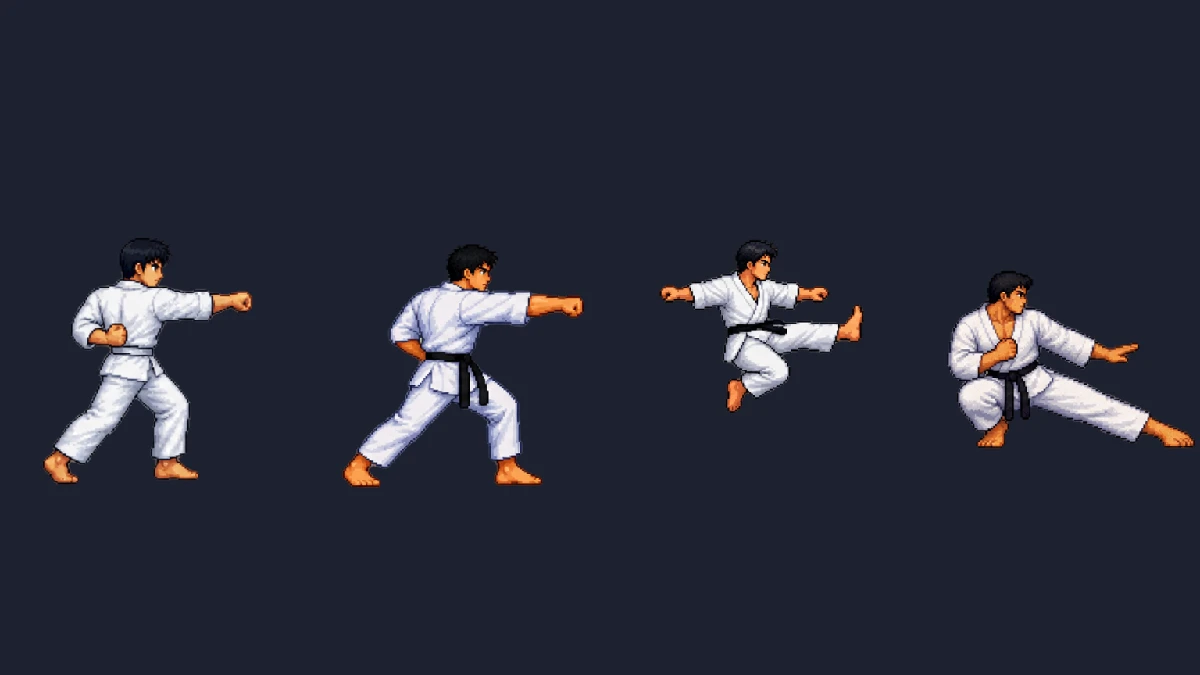
Fighting game sprites are the hardest sprites in 2D games to get right. A platformer hero needs a walk, a jump and maybe one attack. A fighter needs a dozen attacks that all read differently at a glance, a crouching stance that never stands up by accident, and the same face and outfit across every one of them. Players look at these characters from two meters away for hours, so every flaw shows.
This guide covers what makes fighting game sprites different, the moves a basic fighter needs, how light, medium and heavy attacks should differ frame by frame, and how to keep one fighter consistent across the whole move list. Every sheet in it is a real 8-frame output from the AI sprite creator on this site, made with the fighting move picker described at the end.
What makes fighting game sprites different
Three things separate a fighting game sprite sheet from an ordinary character animation.
- Side view, always. Fighters are drawn in pure profile facing the opponent. The game mirrors the sprite when the characters switch sides, so you draw one facing direction and never a three-quarter view.
- Every attack has three phases. Startup is the wind-up before the hit, active is the moment the attack can hit, and recovery is the return to the ready stance. Players read these phases to decide when to block and when to punish, so they have to be visible in the drawing, not just in the code.
- The ready stance is a contract. Each normal attack starts and ends in the same stance, so the game can chain moves without the character popping between poses. A crouching attack starts and ends crouched.
If you have never built a sprite sheet before, the general guide to making a sprite sheet covers cell sizes, frame counts and engine import. This post assumes that part and focuses on the fighting-game specifics.
The move list a basic fighter needs
Classic 2D fighters use six attack buttons: light, medium and heavy, for punch and kick. Combined with three stances (standing, crouching and jumping), that gives 18 normal attacks. Add the movement and reaction animations and a minimal fighter looks like this:
| Animation | Count | Frames per sheet | Notes |
|---|---|---|---|
| Idle stance | 1 | 6–8 | Loops constantly. Small breathing motion only. |
| Walk forward and back | 2 | 8 | Back walk can be the forward walk played in reverse. |
| Crouch | 1 | 6 | The crouching ready stance every low attack starts from. |
| Jump | 1 | 8 | Takeoff, rise, peak, fall, landing. |
| Standing normals | 6 | 6–8 | Light, medium and heavy, punch and kick. |
| Crouching normals | 6 | 6–8 | Same buttons, done low. |
| Jumping normals | 6 | 6–8 | Done in the air, aimed down and forward. |
| Hit, block, knockdown | 3+ | 6–12 | The knockdown holds on its last frame. |
That is around 25 sheets for one character before any special moves. It is also why consistency matters more here than anywhere else: 25 sheets drawn slightly differently look like 25 different people.
Light, medium and heavy attacks should look different
The most common mistake in fighting game sprites is three punches that are the same punch at different speeds. Strength in a fighting game is not effort. It is the type of attack, and each type has a different shape across the frames.
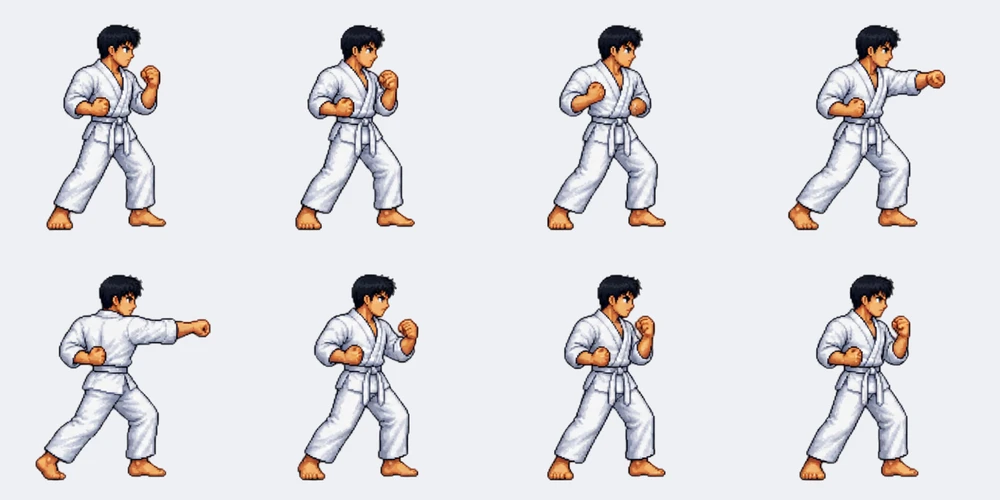
Light attacks are fast and short. The fist or foot snaps out and back with almost no wind-up, the body barely turns, and the character is back in the ready stance quickly. In the sheet above, most of the eight frames are the guard; the arm is only extended for a moment.
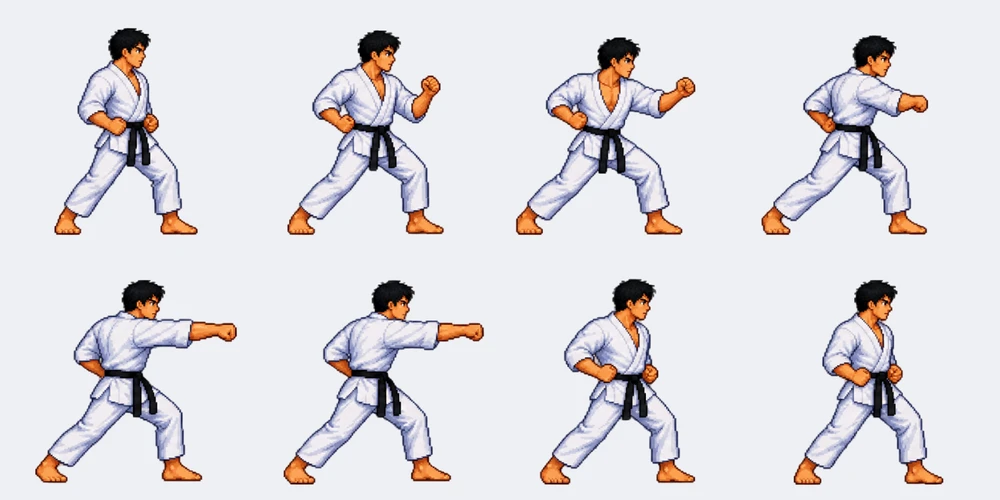
Heavy attacks commit the whole body. The wind-up pulls the fist back to the hip, the hips and shoulders twist into the strike, the arm reaches full extension, and the recovery is slow enough that the opponent can punish a miss. Compare the two sheets: the heavy punch steps forward and holds the extended arm for two frames, the light jab does not.
Medium sits between the two: a brief wind-up, a full straight extension and a normal recovery.
A practical rule for an 8-frame sheet:
- Light: 1 ready frame, 1 startup, 2 active, 3 recovery, 1 ready.
- Medium: 1 ready, 2 startup, 2 active, 2 recovery, 1 ready.
- Heavy: 1 ready, 2 startup, 2 active, 2 recovery, 1 ready, with the biggest pose change at the active frames.
The frame count of the sheet can be the same for all three. What changes is how the frames are spent, and you can fine-tune the timing in the engine by giving active frames a longer duration.
Crouching moves stay crouched
A crouching attack is done entirely from the crouching stance. The first frame is crouched, the last frame is crouched, and the character never stands up in between. A sheet that starts standing, drops into a crouch and stands back up is a different move, and it breaks combos because it does not start from the stance the previous move ended in.
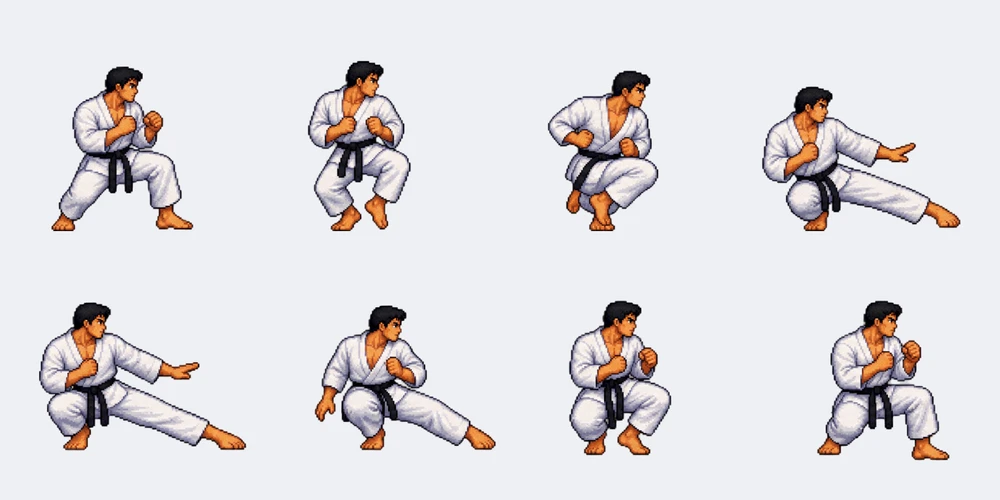
The crouching heavy kick is the classic example. In most fighters it is a sweep: the front leg slides out flat along the ground to knock the opponent down. Note what stays fixed in the sheet above: the hips never rise, the head stays at the same low height, and the leg returns to the crouch at the end. The crouching heavy punch is usually the opposite shape, a rising uppercut that drives the fist up above the head.
Jumping attacks
Jumping attacks are done in the air and aimed forward and down, because they hit an opponent who is standing below. The sheet needs the jump itself (takeoff, rise, the attack at the peak, falling and landing) so the attack lines up with the arc of the jump.
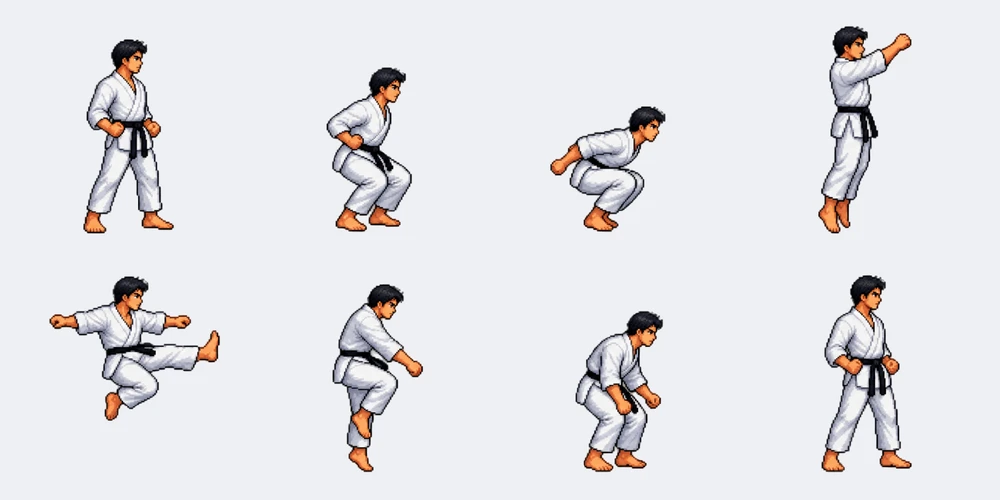
Two details make jumping sheets work in a game. Keep the character the same size in the air as on the ground, and let the engine move the sprite up and down rather than drawing the height into the frames, unless you want the arc fixed. If you draw the height in, keep the ground line identical on the first and last frames so landing does not jump.
Keep one fighter across every move
Look closely at the sheets in this post. They were all generated from the same text description, “karate fighter in a white gi”, but the light punch has a white belt and the others have a black one. Each sheet was made from text alone, so each one is the generator’s own reading of the description. In a 25-sheet move list, small differences like that are what make a fighter look like several people.
Hand-drawn fighters solve it with a model sheet and strict reuse of body parts. With an AI generator, the equivalent is a reference image. Make the first sheet, then use one frame of it as the reference for every other move, so the generator draws the same character instead of reinventing it each time. On SpriteGen this is the Next action button on a finished sheet: it keeps the first frame of that character as the anchor and lets you describe the next move. Use that shared reference to build a consistent set of moves for your fighter.
Fighting games also love alternate costumes. With a reference image set, describe the change along with the move, for example “the same fighter in a red gi with a black headband, heavy punch”. The look change applies to every frame while the rest of the character stays as in the reference.
One rule to keep yourself out of trouble: make your own characters. Sprites ripped from commercial fighting games, or new sprites of their characters, are not yours to ship.
Make fighting game sprites with SpriteGen
The sprite creator has a fighting move picker built for this workflow.
- Describe the fighter. For example “karate fighter in a white gi with a black belt”. Add a reference image if you already have the character.
- Choose Side view as the perspective.
- Open Fighting move in the action area and pick three things: the stance (Standing, Crouching or Jumping), the attack (Punch or Kick) and the strength (Light, Medium or Heavy). “Crouching Heavy Kick” becomes a low sweep, “Crouching Heavy Punch” a rising uppercut.
- Pick the frame count. 8 frames covers most normals; use 12 for a heavy move you want to look smooth.
- Generate, then use Next action to make the rest of the move list with the same fighter.
You can also type the move into the description the way players write it. “Crouching heavy kick”, “cr.HK” and “2HK” are all understood, as are LP, MP, HP and LK, MK, HK for the six buttons.
Each sheet comes out as a transparent PNG with evenly spaced cells, ready to slice in Unity, Godot, GameMaker or Phaser. The import steps for each engine are the same as for any other sprite sheet. For a fighter, set the animation to play once rather than loop, and make the active frames last a little longer than the others so hits feel solid.
Ready to build your fighter? Open the sprite creator, describe your character, pick a fighting move and generate your first sheet.
Ready to animate your character?
Describe your character, get a game-ready sprite sheet in minutes. Free to start.
Try Sprite Creator →